Preview your file organisation before anything moves.
FileFlow sorts the files in a folder into category folders such as Documents, Images and
Audio. It shows you every planned move first, moves only the files you confirm, and keeps
a history so you can move them back.
Windows 10 and 11, 64-bit · 47 MB portable ZIP, nothing to install · GPL-3.0
How it works
Choose, analyse, preview, then apply.
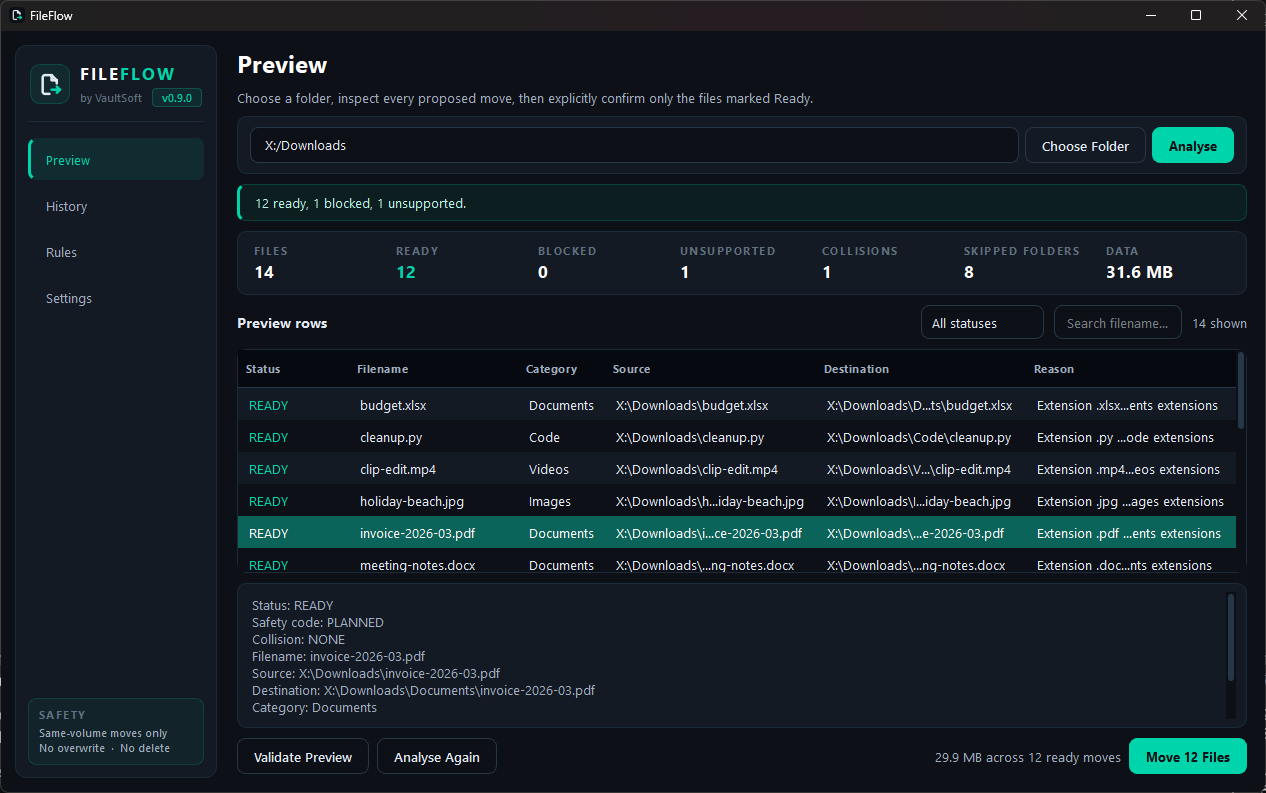
Nothing moves until the last step. Until then FileFlow only reads the folder and shows you
exactly where each file would go.
Choose Folder
Pick a messy folder, such as Downloads. FileFlow looks at the files directly inside it.
Analyse
Built-in rules match each file by its extension to a category: Images, Documents, Videos, Audio, Installers, Archives or Code.
Preview
Every file gets a row: Ready, Blocked, Collision or Unsupported, with its exact destination and the reason.
Apply
Confirm, and FileFlow moves only the Ready files, checking each one again just before it moves.
History & Undo
Changed your mind? Move them back.
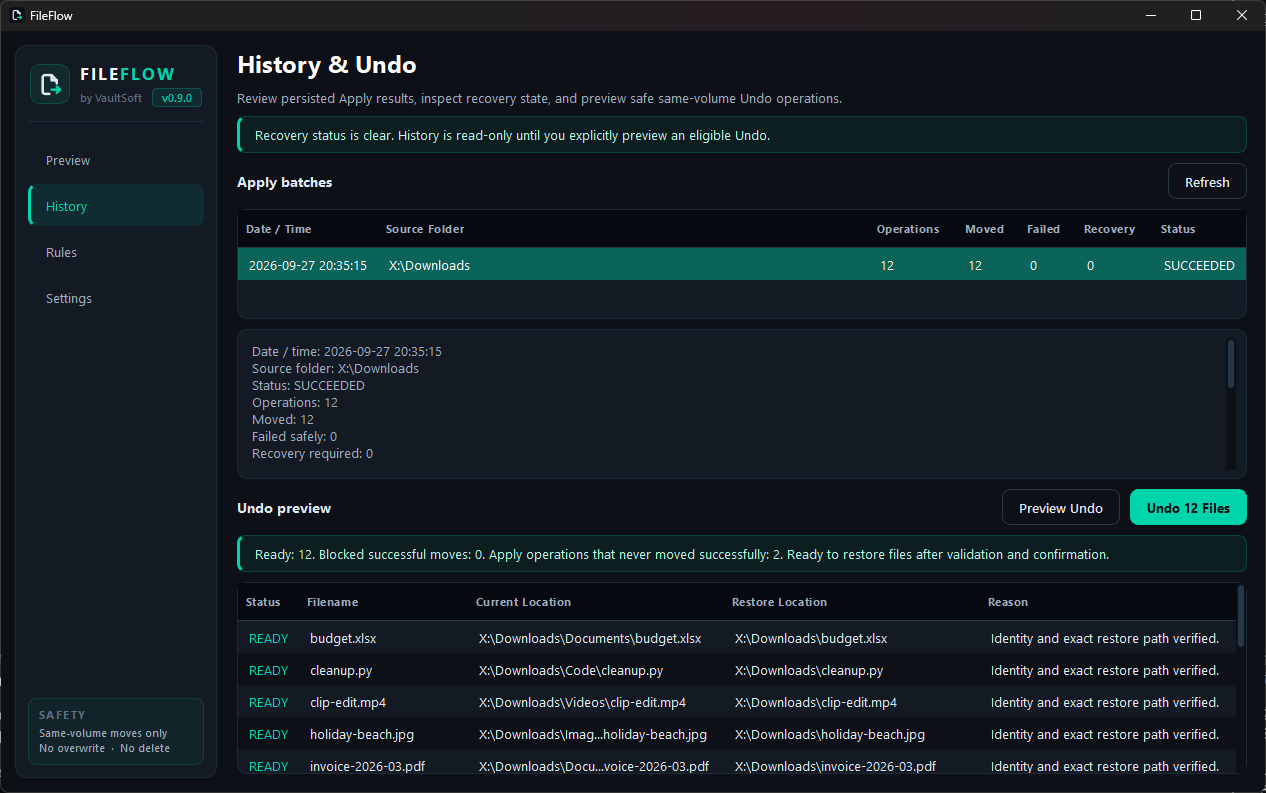
Every Apply is saved in FileFlow's history. Pick one and choose Preview Undo
to see which files can go back before anything moves.
Before moving a file back, FileFlow checks it is still the same file, in the place it moved it to.
It checks the original location is still free. If something is there now, that file is left where it is.
Undo restores a file's location, not its earlier contents. A file edited since the move goes back as it is now.
History & Undo: each file's current and original location, checked before anything moves.
Rules
Simple rules you can check.
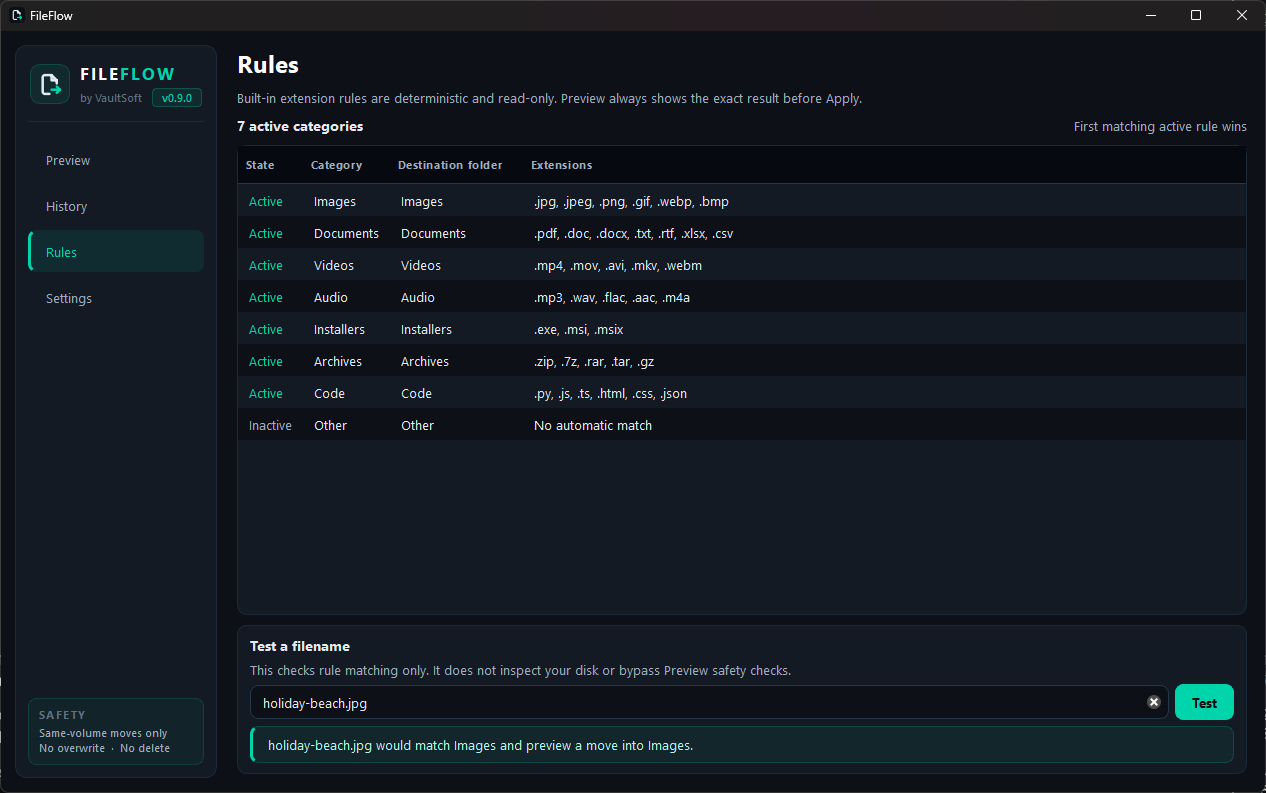
FileFlow 0.9 sorts by file extension with a fixed set of built-in rules: .jpg goes to
Images, .pdf to Documents, .mp3 to Audio, and so on. The Rules page lists them all and
lets you test any filename to see where it would go. The same file always gets the same
answer.
The built-in rules, with a filename tester.
Safety
Careful by design.
FileFlow does one thing, moving files into folders, and it is deliberately strict about it.
Nothing moves until you've seen the preview and confirmed it.
No overwriting. If a file with the same name is already at the destination, that file is blocked. It isn't replaced or renamed.
Moves only, on the same drive. FileFlow doesn't copy or delete your files.
Checked twice. Each file is checked again right before it moves, and again before Undo.
Stops rather than guesses. If a move can't be confirmed, FileFlow locks Apply and Undo and shows what happened, instead of retrying.
No account, no telemetry, no update checks. FileFlow has no online features.
FileFlow isn't a backup. Keep backups of files that matter, as you would with any tool that moves them.
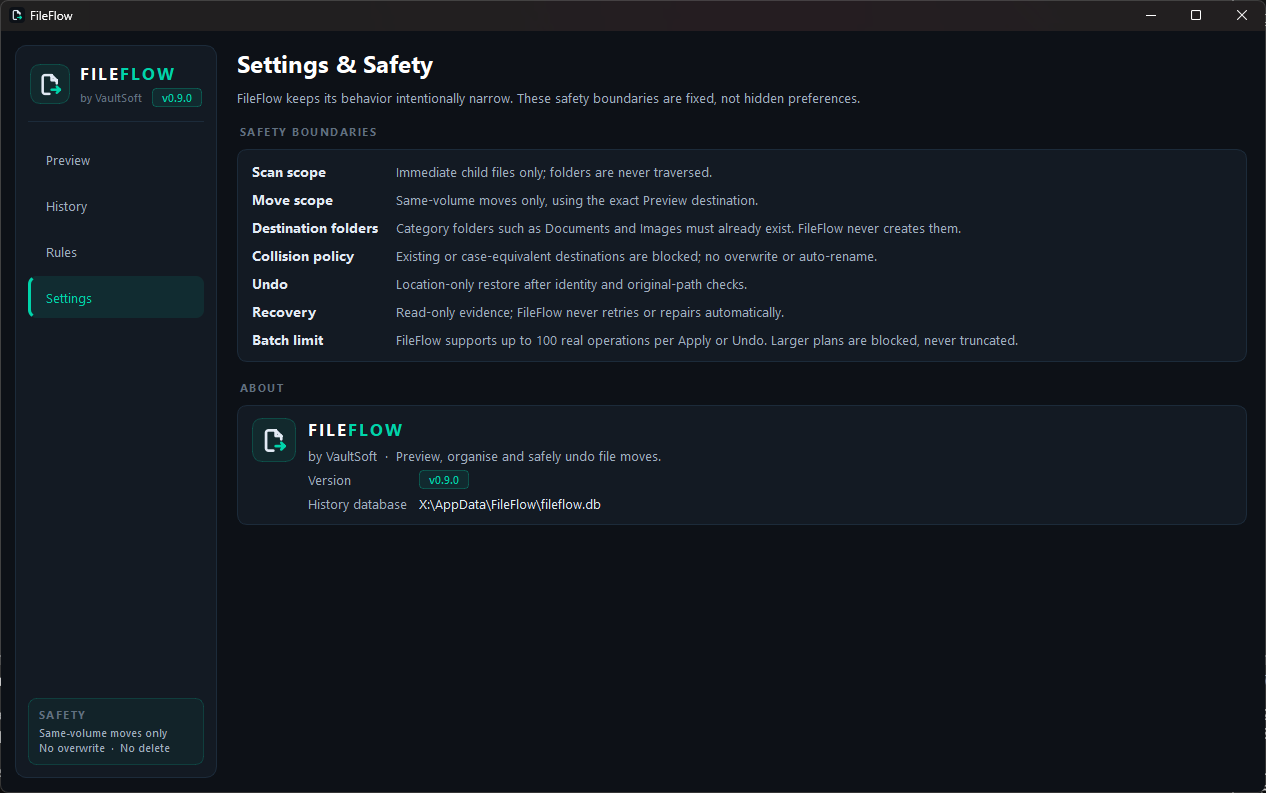
Settings & Safety: the same boundaries, shown inside the app. They're fixed, not options.
Current limitations
What FileFlow 0.9 won't do.
Most of these are deliberate, to keep every move predictable. Please read them before you start.
Top level only
Only the files directly inside the folder you choose are sorted. Subfolders and their contents are left alone.
Folders must exist
Destination folders such as Documents and Images must already exist inside the folder. FileFlow tells you which are missing, but doesn't create them.
Same drive only
Files are moved within the same drive. FileFlow won't move files to another drive. Network shares, cloud files that aren't stored on this PC, and linked folders are blocked too.
Up to 100 files at a time
Each Apply or Undo handles up to 100 files. A larger plan is blocked, not cut short.
No renaming around clashes
If a file with the same name is already at the destination, that file is skipped. FileFlow never overwrites it or adds a number to the name.
No Redo, fixed rules
There's no Redo yet, and the rules are built in: you can't edit them in this version. Windows only.
To check your download, run Get-FileHash .\FileFlow_v0.9.0_Portable.zip in PowerShell and compare the result with the line above. The capitals don't matter.
Get it
Download the FileFlow v0.9.0 ZIP.
Extract the whole FileFlow folder anywhere you like.
Run FileFlow.exe from that folder.
That's it: there's no installer. To remove it, delete the folder.
Licence: FileFlow is free software under the GNU GPL v3.0. It comes with no warranty. Check the preview before you apply it.
Good to know
Before you run it
Why does Windows warn me about it?
FileFlow isn't code-signed yet. Windows SmartScreen warns about any new download that hasn't built up a reputation, and says "Windows protected your PC". Click More info, then Run anyway. It usually only asks the first time.
Before you do, check the ZIP's SHA256 against the one above: if it matches, you have exactly the file we published. Some antivirus tools also flag apps packaged the way FileFlow is (PyInstaller) by mistake. If yours does, the SHA256 check is how to tell it's ours.
Where does FileFlow keep its history?
In %LOCALAPPDATA%\FileFlow\fileflow.db on your PC. The Settings page shows the exact path. Deleting the program folder doesn't remove it.
Is it really free?
Yes. FileFlow is free and open source under the GNU General Public License v3.0: no price, no trial, no licence key. The source code is on GitHub. The ZIP includes the licence and the notices for the open-source parts it is built on (Qt, PyQt6 and Python) in LICENSE, THIRD_PARTY_NOTICES.md and the LICENSES folder.
What happens if a move goes wrong?
If FileFlow can't confirm that a move finished properly, for example because it was interrupted, it says so on the History page and locks Apply and Undo. It shows where the file was and where it was going, so you can check. It never retries or "repairs" on its own.